

Finally! How to Change Your Gmail Username (The Official 2026 Guide)
For the first time since Gmail launched, Google now allows personal Gmail users to change their @gmail.com username without creating a new account or losing any data. This long-awaited feature began rolling out in late 2025 and is expected to reach most users globally throughout 2026.
If your current Gmail address feels outdated, unprofessional, or no longer reflects who you are, this update finally gives you a solution.
Can You Really Change Your Gmail Username in 2026?
Yes. Google now lets eligible users update their Gmail username while keeping:
All existing emails
Google Drive files
Google Photos
YouTube subscriptions
Google Play purchases
Account history and settings
Your old Gmail address continues to work as an alias, meaning emails sent to both addresses arrive in the same inbox.
Why Change Your Gmail Username?
Many users created Gmail accounts years ago using usernames that no longer fit their personal or professional life. Common reasons to change include:
Moving from a casual or childhood username to a professional one
Rebranding for business, freelancing, or content creation
Simplifying a long or confusing email address
Improving online credibility and trust
This update allows you to modernize your digital identity without starting over.
Step-by-Step: How to Change Your Gmail Username
If the feature is available on your account, follow these steps:
Step 1: Sign In
Go to myaccount.google.com and log in to your Gmail account.
Step 2: Open Personal Info
Navigate to Personal info and select Email.
Step 3: Change Email Address
If eligible, you will see the option “Change email address” next to your current Gmail username.
Step 4: Choose a New Username
Enter your desired @gmail.com username and check availability.
Step 5: Verify and Confirm
Confirm the change using a verification email sent to your old Gmail address.
Once verified, the new address becomes active immediately.
Quick Overview Table
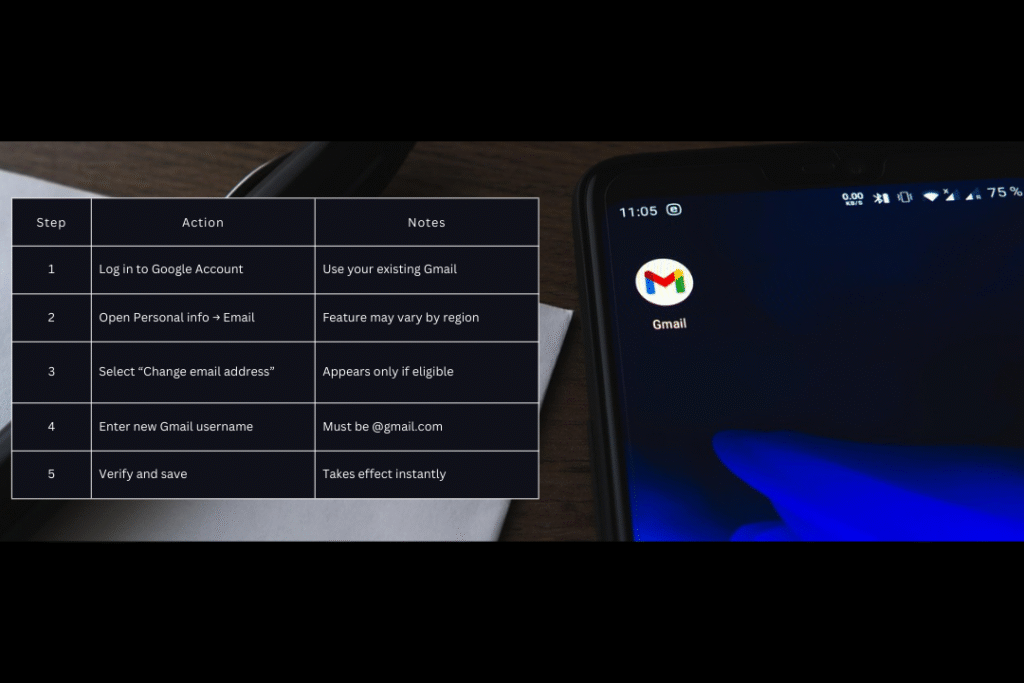
| Step | Action | Notes |
|---|---|---|
| 1 | Log in to Google Account | Use your existing Gmail |
| 2 | Open Personal info → Email | Feature may vary by region |
| 3 | Select “Change email address” | Appears only if eligible |
| 4 | Enter new Gmail username | Must be @gmail.com |
| 5 | Verify and save | Takes effect instantly |
Eligibility Rules & Limitations
Before changing your Gmail username, keep these rules in mind:
Personal Gmail accounts only
(Google Workspace / business accounts are not supported)Change limit
Once every 12 months
Maximum of 3 username changes per account lifetime
Old username is reserved
Your previous Gmail address remains linked to your account and cannot be used by anyone else.Temporary display delays
Some Google services (like Calendar or Android system settings) may show your old email briefly before updating.
Regional Availability (2026 Rollout)
The feature began appearing first in South Asian regions, including India and nearby countries. Global availability is expanding gradually throughout 2026.
If you don’t see the option yet, check back periodically.
Google is enabling it in phases.